
The main project management apps for Slack are Slack Lists, Let's Do, Chaser, and Workast. Slack Lists is built in but needs a paid plan and has no recurring tasks; the other three work on the free plan and add due date reminders. The comparison below comes first, then a walkthrough of setting up a project workflow in Slack with whichever you pick.
Slack-native project management apps
These apps live inside Slack. Your team doesn't need to learn another tool or open another tab. For a more detailed comparison of to-do list features specifically, see our Slack to-do list apps comparison.
| Feature | Slack Lists | Let's Do | Chaser | Workast |
|---|---|---|---|---|
| Works on free Slack | ✗ | ✓ | ✓ | ✓ |
| Recurring tasks | ✗ | ✓ | ✓ | ✓ |
| Due date reminders | Via workflows | ✓ | ✓ | ✓ |
| Team overview | Limited | ✓ | ✓ | Pro plan |
| Custom fields | ✓ | ✗ | ✗ | Pro plan |
| Stays fully in Slack | ✓ | ✓ | ✓ | Partially |
| Pricing | Slack Pro ($7.25/user/mo) | $14/mo flat | $4/user/mo | $4.95/user/mo |
Pricing with annual billing where available. Competitor pricing last verified May 2026.
If you need custom fields and workflow automations, Slack Lists is the best built-in option. If you need recurring tasks, reminders, or work on the free plan, a third-party app is the way to go.
What Slack gives you for free
Before adding anything, it's worth knowing what Slack already offers for project management. You might be further along than you think.
Channels as project spaces. Create a channel per project (#project-website-redesign, #q3-marketing-campaign). All discussion, files, and decisions stay together. When the project wraps, archive the channel.
Canvas for shared docs. Every channel has a Canvas, a lightweight document for project briefs, meeting notes, or decision logs. It's not Google Docs, but it's good enough for most project context.
Pins and bookmarks. Pin important messages (decisions, specs, deadlines) so they don't get buried. Bookmarks at the top of a channel can link to external resources like design files or spreadsheets.
Slack Lists (paid plans only). Launched in 2024, Lists adds task tracking with assignments, due dates, custom fields, and board views. If your team is on Slack Pro ($7.25/user/month) or higher, this covers basic project tracking without an extra app.
Workflow Builder. Automate recurring processes: standup prompts, approval requests, onboarding checklists. Available on paid plans.
Where Slack alone falls short
Slack's built-in tools handle communication and basic organization well. But if you try to run actual projects with just channels and pins, you'll hit these walls:
- No recurring tasks. Slack Lists doesn't support them. If your team has weekly reports, monthly reviews, or sprint ceremonies, you're recreating items manually every time.
- No automatic reminders for due dates. Lists lets you set due dates, but nobody gets a notification when something is overdue. You're relying on people to check.
- No team overview. There's no single view showing what's assigned to whom across all channels. Each list lives in its own channel.
- Lists requires a paid plan. Teams on Slack's free plan don't get Lists at all, leaving them with no structured task tracking.
- Tasks created from messages disappear. You can save messages for later, but there's no way to turn a Slack message into a tracked task with a due date and assignee natively.
For teams that hit these limits, a lightweight Slack app fills the gaps without requiring a full platform switch.
Setting up a project management workflow in Slack
Here's how a small team can set up lightweight project management in Slack. This example uses Let's Do, but the workflow pattern applies to any Slack-native app.
1. Create a channel for each project
Use a clear naming convention: #proj-website-redesign, #proj-q3-campaign. Keep project discussion, files, and tasks in one place. For ongoing team work that isn't project-specific, use your existing team channel.
2. Add a task list to the channel
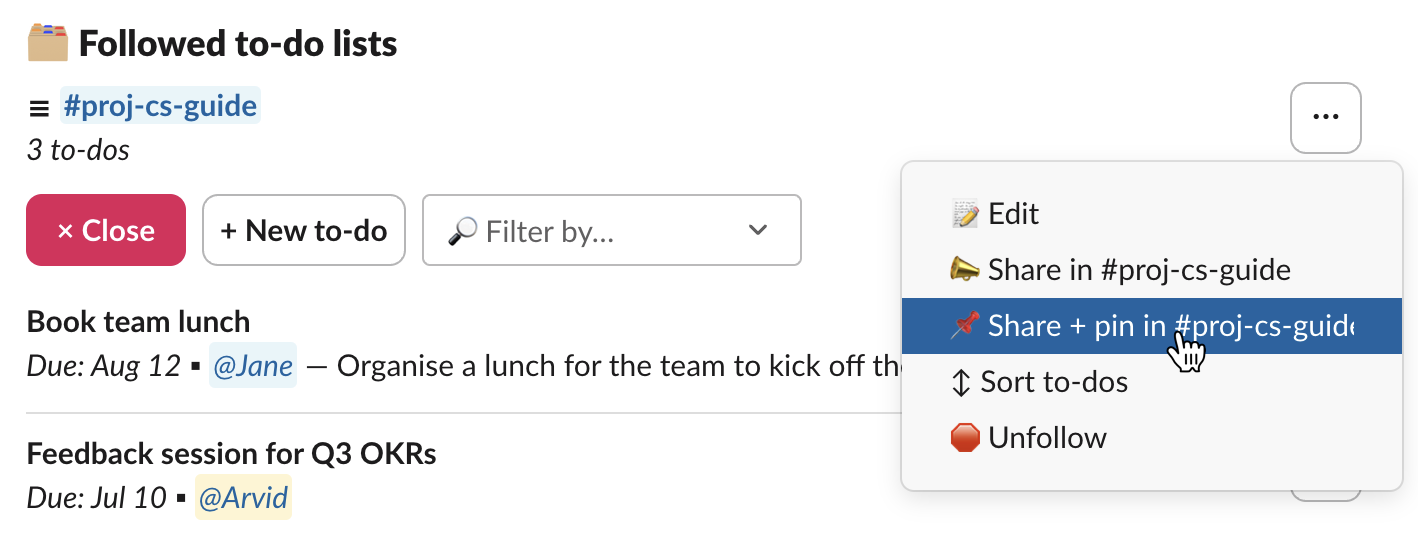
Install your task management app and create a to-do list in the project channel. With Let's Do, type /todo share in the channel to create and share a list. Pin it so the task list stays visible at the top of the channel.
3. Break the project into tasks
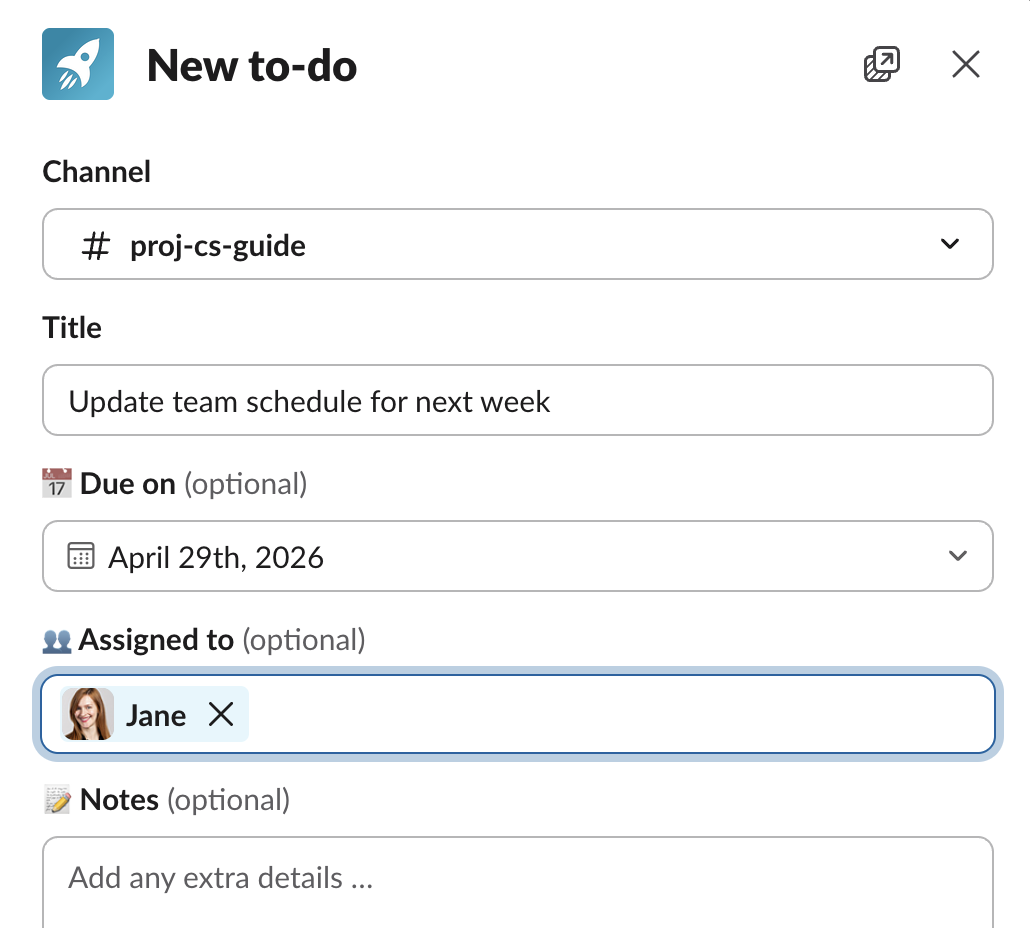
Create tasks with clear titles, due dates, and assignees. A good task title is specific and actionable: "Draft homepage copy by Friday" beats "Work on website." Add notes or links to relevant documents in the task description.
For larger tasks, break them into subtasks. This makes progress visible and keeps individual steps manageable.
4. Set up recurring tasks for routine work
Weekly standups, monthly reporting, sprint retros. Instead of recreating these manually, set them to repeat. When you complete the task, the next one is automatically created with the updated due date.
5. Use the team overview to stay on top of things
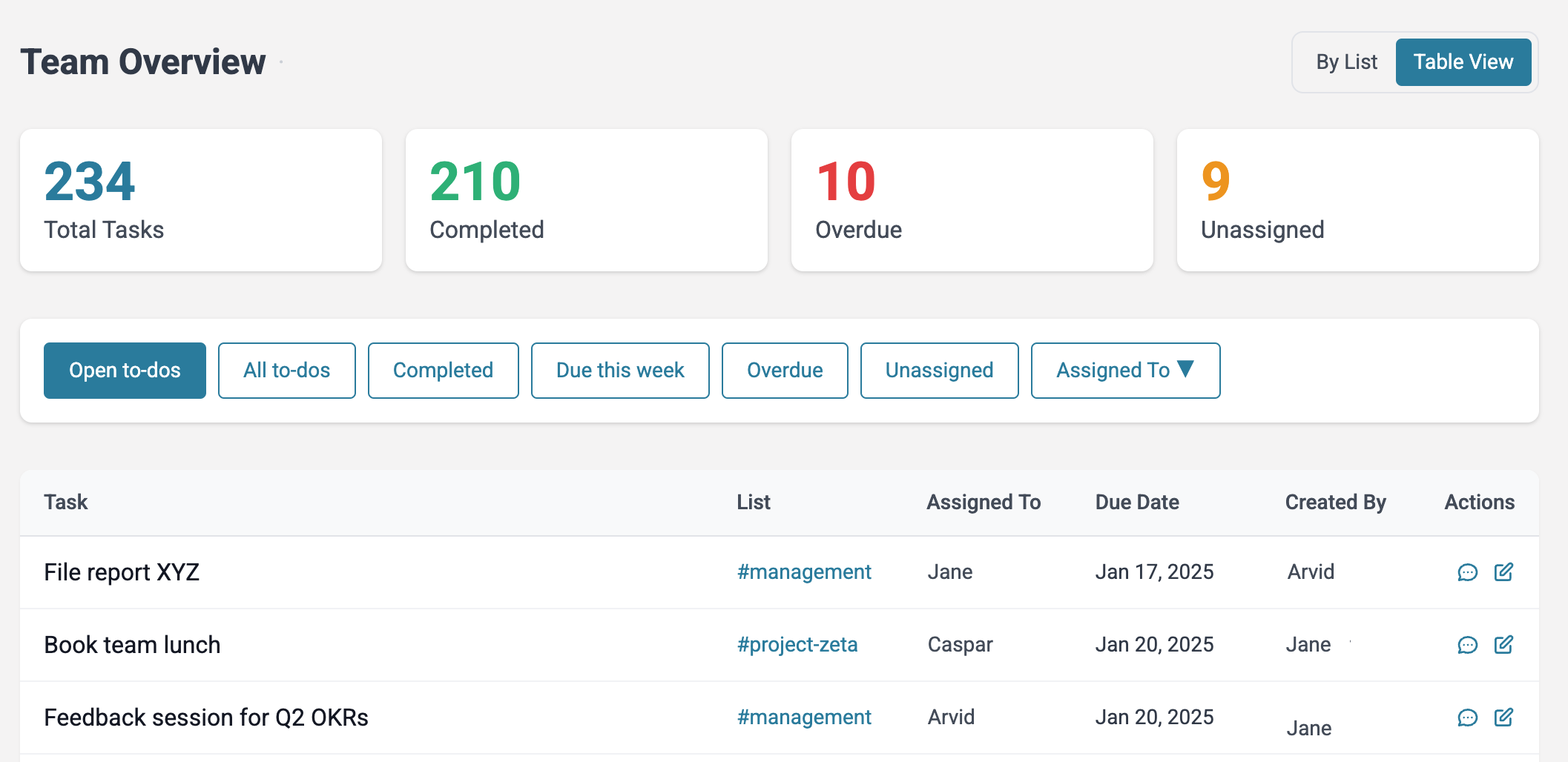
As your team creates tasks across multiple channels, use the team overview to see everything in one place. Filter by assignee, due date, or channel to spot overdue items and unassigned work. This replaces the need for status meetings where everyone just reads their list aloud.
6. Review and adjust weekly
Check in once a week: are tasks getting done? Are due dates realistic? Are the right people assigned? A 15-minute weekly review in the project channel keeps things on track without adding a formal process.
Do you actually need a big PM tool?
Probably not, if:
- Your team is under 20 people
- You run a handful of projects at a time
- Your projects don't need Gantt charts, resource allocation, or complex dependencies
- Your team already communicates in Slack
Tools like Jira, Asana, and Monday are built for larger organizations with dedicated project managers. For a 5-10 person team, they add complexity without proportional value. You end up with two systems (Slack for talking, PM tool for tasks) and neither has the full picture.
A Slack-native app keeps everything in one place. When someone mentions a task in a thread, it's already in the same tool where the task lives. No tab switching, no sync issues, no "did you update the board?"
That said, if your team grows larger or your projects involve cross-department dependencies, a dedicated PM tool starts to earn its keep. The good news is that most of them integrate with Slack, so the transition is gradual. For a direct head-to-head, see our comparison of Slack vs Asana, Jira, and Monday.
Getting started
Pick a Slack-native app that fits your team's size and needs. If you want to try Let's Do, the free trial gives you full access to all features: task lists in channels, assignments, due dates, recurring tasks, subtasks, and the team overview.
Start small. Pick one project, set up a channel and a task list, and run it for a week. If it works, expand. If it doesn't, you've lost nothing.
For more on task management specifically, see our guides on task management in Slack and setting reminders in Slack.
Frequently asked questions
Can you use Slack for project management?
Yes. Slack's channels, Canvas, pins, and built-in Lists feature cover the basics. For teams that need due dates, recurring tasks, and a team overview, a lightweight Slack app like Let's Do fills the gaps without adding a separate platform.
What is the best project management app for Slack?
For small teams (under 15 people) that want to stay inside Slack, Let's Do, Chaser, and Workast are the main options. Let's Do and Chaser are fully Slack-native. Workast adds a web app. For larger teams with complex workflows, tools like Asana or Jira integrate with Slack but live outside it.
Do I need a separate project management tool if my team uses Slack?
Not necessarily. Many small teams over-tool themselves by adding Jira, Asana, or Monday when all they need is shared task lists with due dates. If your projects are straightforward and your team is under 20 people, a Slack-native app combined with channels and Canvas is often enough.
Does Slack have built-in project management?
Slack has Lists (task tracking with assignments and due dates), Canvas (shared documents), and Workflow Builder (automations). Lists requires a paid plan and lacks recurring tasks. For full project management with recurring tasks, reminders, and team overviews, most teams add a dedicated app.