
To set a reminder in Slack, type /remind [who] [what] [when] in any message field, for example /remind me to review the proposal tomorrow at 9am. To remind your whole team, remind a channel instead: /remind #marketing to post the update every Monday at 10am. As of 2026, Slack no longer lets you set a reminder for another individual person, only for yourself (me) or a channel.
Beyond /remind there are three more options: message-based reminders for flagging specific conversations, Workflow Builder for automated recurring notifications, and dedicated task management apps for structured team workflows. This guide covers all four so you can pick the right one for your situation.
Using the /remind command
The fastest way to set a reminder in Slack is with the /remind slash command. Type it directly into any message field followed by who should be reminded, what to remember, and when.
The basic format is:
/remind [who] [what] [when]
Important (2026): Slack no longer lets you set a reminder for another individual person. The who can only be me (yourself) or #channel (everyone in a channel). To remind your team, use a channel reminder; for per-person accountability with assignments and due dates, use a task management app like Let's Do.
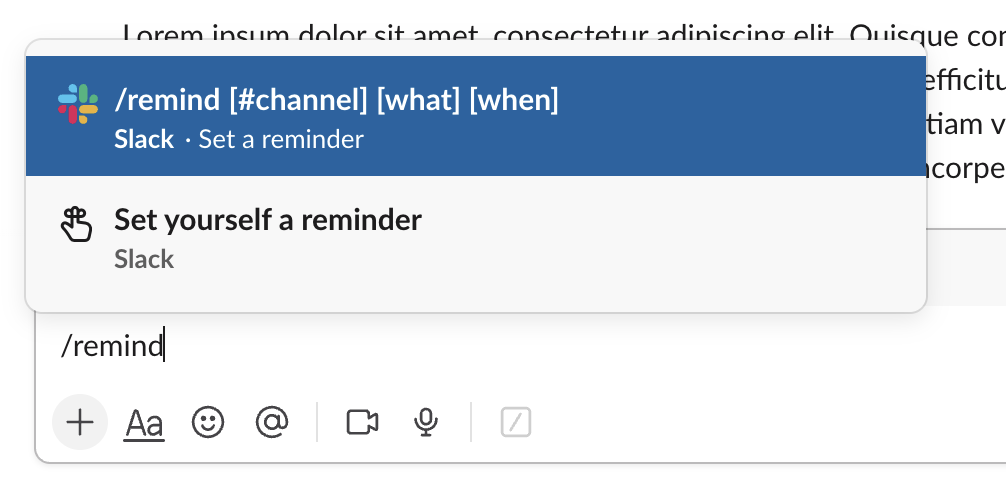
Here are some examples:
/remind me to review the proposal tomorrow at 9am/remind #marketing to post the weekly update every Monday at 10am/remind me to follow up with Lisa on Friday at 5pm
The who can be me (yourself) or #channel (an entire channel). Note that Slack removed the ability to set reminders for other individual users. If you need to remind a specific person, set a channel reminder and mention them, or send them a direct message. The what is a free-text description. The when accepts natural language, which we cover in detail below.
Once set, Slack notifies you at the designated time. Channel reminders are posted as a Slackbot message visible to everyone in the channel. Personal reminders send you a notification that you can act on or snooze.
Slack reminder syntax reference
Slack's /remind command accepts a wide range of time formats. Here is a quick reference for the most common ones:
| Format | Example |
|---|---|
| Relative time | /remind #team to stretch in 20 minutes |
| Relative days | /remind #sales to follow up in 3 days |
| Tomorrow | /remind #team to call the client tomorrow at 2pm |
| Specific day | /remind #finance to send invoice on Friday |
| Specific date | /remind #marketing about the launch on March 15 |
| Date and time | /remind #team to join the call on April 3 at 10:30am |
| Next week | /remind #design to update the deck next Tuesday |
| End of day | /remind #team to log hours today at 5pm |
All times are based on your Slack timezone setting. If your reminders are arriving at unexpected times, check your timezone in your Slack profile settings.
Setting recurring reminders in Slack
The /remind command supports repeating reminders for both yourself and channels. Add a recurring phrase at the end:
/remind me to test every day at 3pm/remind #standup to post updates every weekday at 9am/remind #team to check the backlog every other Monday/remind #marketing to review metrics every month on the 1st at 10am
Recurring reminders keep firing until you delete them. For channel reminders, use /remind list in that channel to manage them. They are useful for routine nudges, but there is no way to track whether anyone acted on them. If you need recurring tasks with accountability, a task management app is a better fit.
Setting a reminder on a Slack message
Sometimes you see a message in Slack and want to come back to it later. Instead of creating a reminder from scratch, you can set a reminder directly on the message:
- Hover over the message you want to be reminded about
- Click the three-dot menu
- Select "Remind me" and pick a time
- Choose a preset time (20 minutes, 1 hour, 3 hours, tomorrow, next week) or set a custom date and time
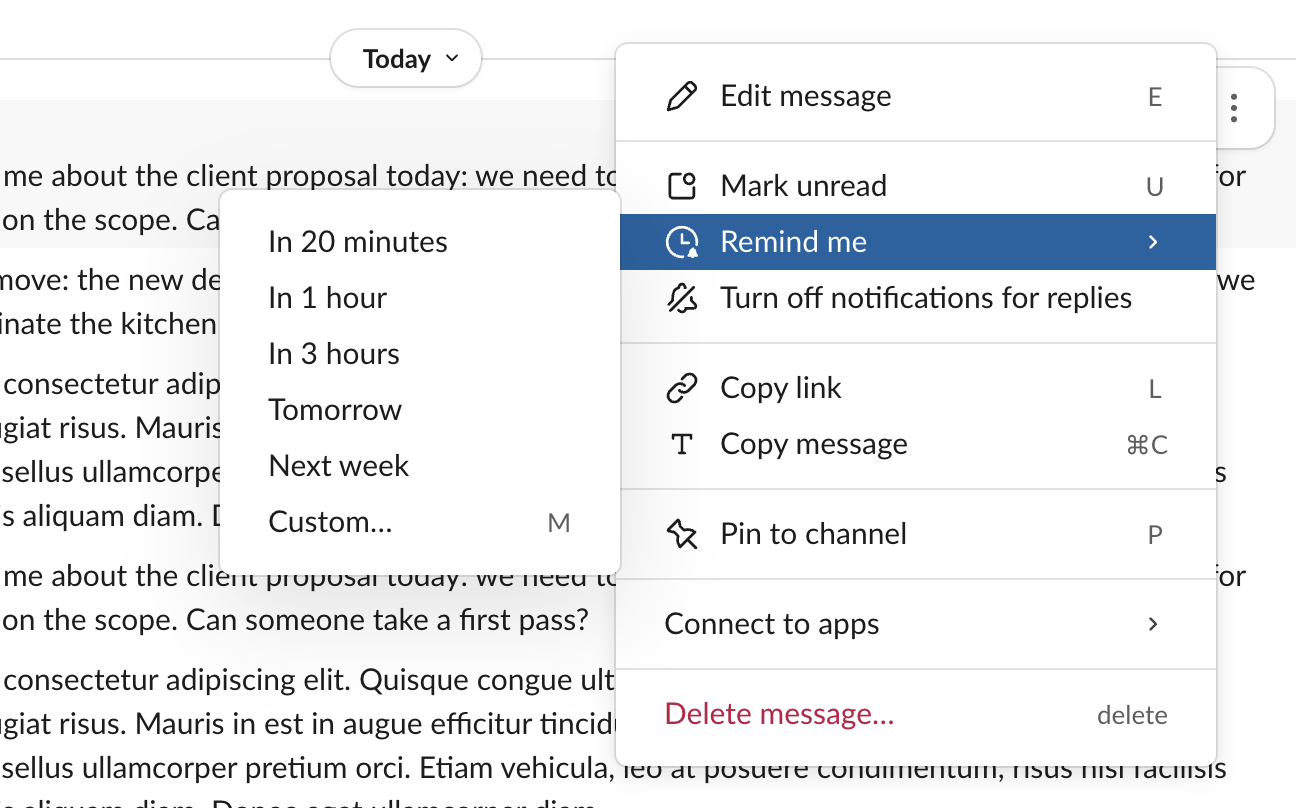
At the scheduled time, Slack sends you a notification with a link back to the original message. This is useful for messages that need a response but not right now, or for flagging decisions you want to revisit.
How to see, edit, and delete Slack reminders
Setting a reminder is the easy part. Changing one later is where Slack gets awkward, mostly because personal reminders and channel reminders live in completely different places.
How to see all your reminders in Slack
Where you look depends on the kind of reminder:
- Personal reminders (
/remind me ...) appear in the Later tab in your Slack sidebar. Everything you have asked Slack to nudge you about sits there, grouped by due date. - Channel reminders (
/remind #channel ...) are managed separately. Type/remind listin that channel to see the reminders set there and delete any you no longer want.
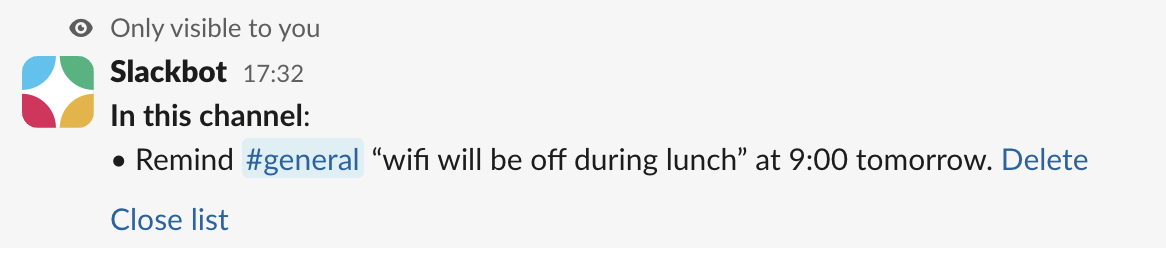
The response is only visible to you. Slack documents /remind list as a per-channel command, so if you have set reminders in several channels, you will need to run it in each one.
How to edit a Slack reminder
It depends on the type, and the difference matters:
- Personal reminders can be rescheduled. In the Later tab, click the clock icon on the reminder, pick a new date or time, and click Update.
- Channel reminders cannot be edited. Slack's documentation says so plainly: delete the reminder and create a replacement.
Neither option changes the reminder text. Rescheduling moves the time and nothing else, so fixing a typo means deleting and recreating in both cases. Worth knowing before you build a team routine on a recurring channel reminder, since any change to the wording starts from scratch.
How to delete or stop Slack reminders
To cancel a recurring channel reminder, run /remind list in the channel and click Delete next to the one you want gone. It stops firing immediately. Each occurrence is posted as a Slackbot message to the whole channel, so deleting the reminder is the only way to stop the repeat posts.
For a personal reminder, open the Later tab, hover the item, and mark it complete or remove it. Message-based reminders (the ones set from a message's three-dot menu) land in the same place, and you can snooze one instead of clearing it if you still need the nudge later.
What you cannot do is mute Slackbot. Slack does not provide a way to turn off Slackbot notifications, and the Slackbot section in your preferences only controls Slack AI behavior, not message delivery. If Slackbot keeps nagging you, deleting the reminder behind it is the only fix. You can change the default time that reminder notifications arrive, though, in Preferences.
Using Workflow Builder for automated reminders
For more sophisticated reminder workflows, Slack's Workflow Builder lets you create automated sequences that trigger on a schedule or in response to events.
Workflow Builder is available on paid Slack plans (Pro and above). It is useful when you need reminders that go beyond simple notifications. For example:
- Posting a weekly status update prompt to a channel every Monday at 9 AM, with a form for team members to fill out
- Sending an onboarding checklist to new channel members when they join
- Triggering a reminder when a specific emoji reaction is added to a message
The tradeoff is complexity. Setting up a workflow takes more effort than a quick /remind command, and you need a paid Slack plan to use it.
Limitations of built-in Slack reminders
Slack's /remind command is great for personal nudges and quick notes, but it has some real limitations when it comes to managing work across a team:
- No assignments or ownership — You can remind someone, but there is no way to assign a task or track who is responsible for what
- No team overview — There is no dashboard showing all reminders across a team. Each person sees only their own.
- Easy to dismiss and forget — Reminders disappear once you interact with them. If you snooze and forget again, they are gone.
- No structure — No due dates, descriptions, subtasks, or priority levels. Just a text string and a time.
- No completion tracking — There is no way to see if a reminder was acted on or if the work got done.
- No collaboration — You cannot discuss a reminder with your team, attach files, or add context beyond the initial text.
For quick personal reminders, the built-in feature works well. But if you need to manage tasks across a team with clear assignments, due dates, and accountability, these limitations start to matter. For a deeper look at what to do when /remind is not enough, see our guide to Slack reminder alternatives.
When to use a task management app instead
When your needs go beyond simple reminders, a Slack-native task management app like Let's Do turns Slack into a structured workspace for getting things done. Instead of isolated reminders that each person manages on their own, you get shared visibility into what needs to happen.
With Let's Do, you get:
- Shared to-do lists organized by Slack channel, with assignments and due dates (pin them in channels for easy access)
- Automatic daily reminders for tasks that are due or overdue (configurable per person)
- Recurring tasks that automatically recreate on a schedule, with subtasks and assignments carried over
- Dedicated Slack threads per task for focused discussion and updates
- Personal to-do lists visible only to you
- A team overview showing all tasks, assignments, and deadlines across channels
- Weekly check-in posts summarizing progress for each channel
Unlike basic reminders, tasks stay visible and trackable until they are completed. Team members get notified about new assignments and reminded about approaching deadlines, all without leaving Slack. And because everything is organized by channel, tasks naturally live where the relevant conversations happen.
If the question you are really weighing is whether to add a full project management tool instead, we compare the options in Slack vs Asana, Jira, and Monday.
Which approach should you use?
The best approach depends on what you are trying to accomplish:
| Approach | Best for | Limitations |
|---|---|---|
| /remind #channel | Team nudges, recurring channel reminders | No tracking, no assignments, easy to ignore |
| Message reminders | Coming back to a specific conversation later | Personal only, no way to share or assign |
| Workflow Builder | Automated recurring workflows with forms | Requires paid Slack plan, more setup effort |
| Task management app | Team task tracking with assignments, due dates, accountability | Requires installing an app |
Many teams use a combination: /remind for personal nudges, message reminders for flagging conversations, and a task management app like Let's Do for team-wide work tracking. This keeps simple things simple while adding structure where it matters.
If you are looking for a more complete approach to managing tasks in Slack, check out our guide on setting up a task management workflow that works alongside Slack's built-in features. For teams coordinating larger efforts, see our practical guide to Slack project management.
Frequently asked questions
How do I set a reminder in Slack?
Type /remind followed by who, what, and when in any Slack message field. For example: /remind me to review the proposal tomorrow at 9am. You can remind yourself (me) or an entire channel (#channel). Slack no longer supports reminding individual users directly.
Can I set recurring reminders in Slack?
Yes, Slack's /remind command supports recurring reminders for both yourself and channels. Use phrases like every Monday at 9am, every weekday at 3pm, or every month on the 1st. For recurring tasks with assignments, completion tracking, and subtasks, use a dedicated task management app.
How do I set reminders in Slack for my whole team?
Use a channel reminder: type /remind #channel followed by what and when, for example /remind #marketing to post the weekly update every Monday at 10am. Everyone in the channel sees it as a Slackbot message. Slack no longer lets you remind individual teammates directly, so for per-person accountability with assignments and due dates, use a task management app like Let's Do.
Why are my Slack reminders not working?
The most common cause is your Slack timezone setting, since all reminder times are based on it. Check it in your Slack profile settings. Other causes: the reminder was already dismissed (personal reminders disappear once you interact with them), or a recurring channel reminder was deleted. Use /remind list in a channel to see and confirm the reminders still set there.
How do I see all my Slack reminders?
For personal reminders, check the Later tab in Slack's sidebar. For channel reminders, type /remind list in the channel to see and manage the reminders set there. Slack documents /remind list as a per-channel command, so you need to run it in each channel where you have set reminders.
How do I edit a reminder in Slack?
Personal reminders can be rescheduled: open the Later tab, click the clock icon on the reminder, choose a new date or time, and click Update. Channel reminders cannot be edited, so you have to delete and recreate them. Neither option lets you change the reminder text, only the time, so fixing the wording means creating a new reminder either way.
How do I delete or stop a Slack reminder?
For a recurring channel reminder, type /remind list in the channel and click Delete next to it. It stops firing right away. For a personal reminder, open the Later tab, hover the item, and remove it or mark it complete. Note that Slack does not let you mute Slackbot itself, so deleting the reminder is the only way to stop the messages.
Can I set a reminder on a Slack message?
Yes. Hover over any message, click the three-dot menu, and select "Remind me about this". Choose a preset time or set a custom date and time. Slack will send you a notification with a link back to the original message.
What is the difference between Slack reminders and task management?
Slack reminders are personal notifications that disappear once dismissed. Task management apps add assignments, due dates, subtasks, team visibility, and completion tracking. Reminders work well for personal nudges, while task management is better when multiple people need to coordinate work with accountability.