Recurring Tasks in Slack
Automate repeating to-dos so they are recreated on a schedule without any manual work.
What are recurring tasks?
Recurring tasks automatically create a new copy of a to-do on a schedule. Use them for anything that repeats: weekly reports, monthly reviews, daily standups, biweekly team lunches, and more.
Setting up a recurring task
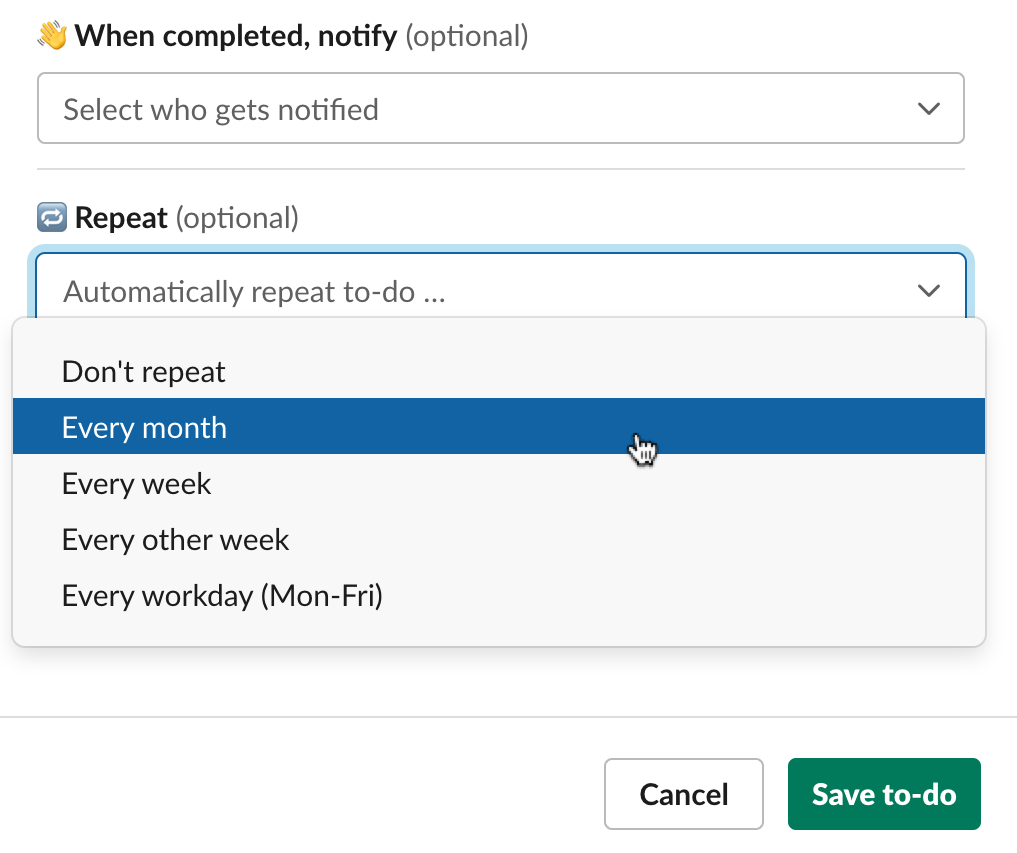
When creating or editing a to-do, use the "Repeat" dropdown to choose a frequency:
- Daily
- Workdays (Monday through Friday)
- Weekly
- Every other week
- Monthly
- Every 6 months
- Yearly
- Custom
A due date is required for recurring tasks, since the next instance's due date is calculated from the current one.
Custom intervals
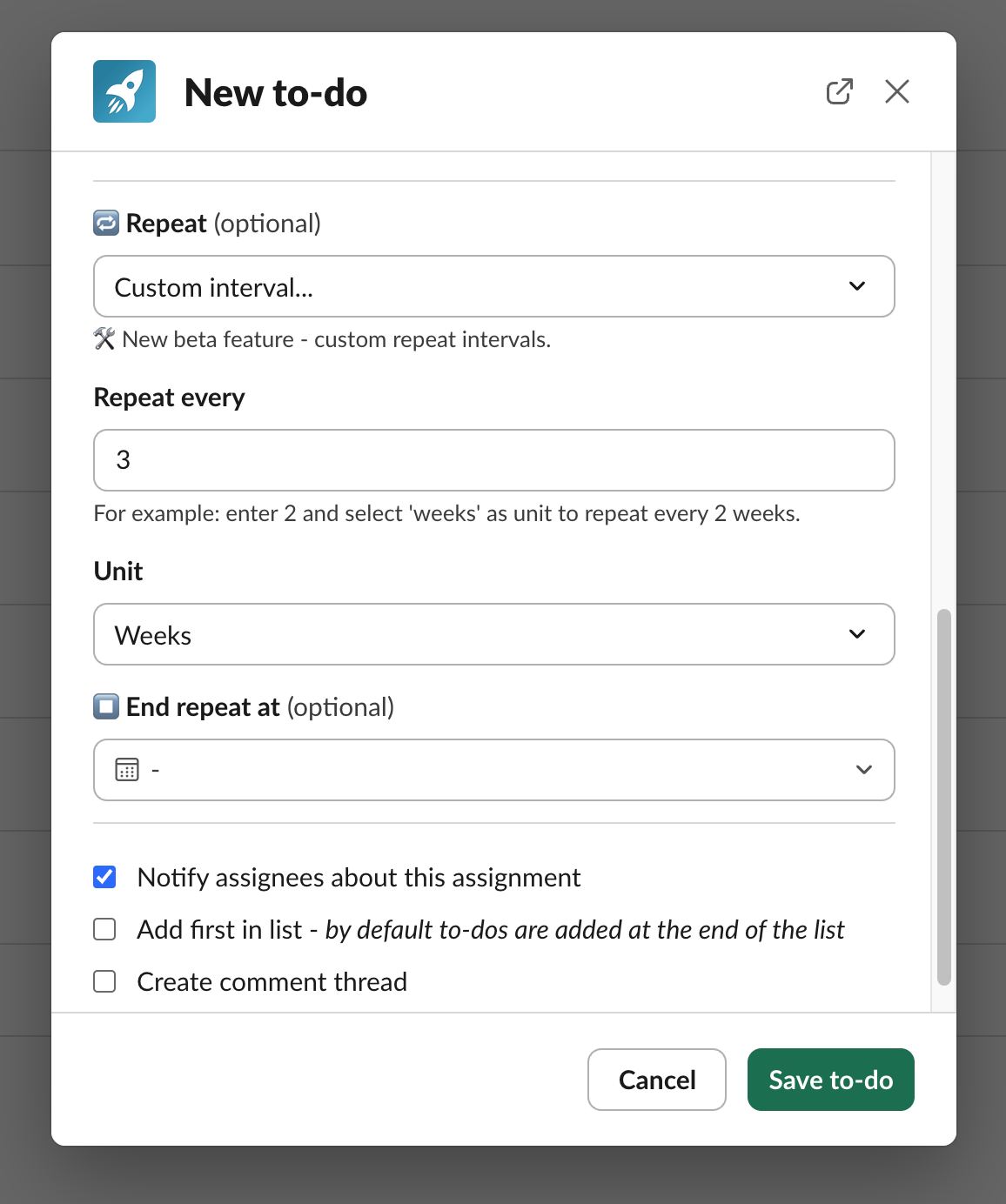
Choose "Custom" from the repeat dropdown to set a specific interval, like every 3 days, every 2 weeks, or every 4 months. You can also set an optional end date to stop the recurrence.
How recurring tasks work
When a recurring to-do is completed or its due date passes, the next instance is automatically created with an updated due date. The new to-do inherits the title, description, assignees, notification settings, and subtasks from the recurring template.
Each instance is a separate to-do. Comments and discussion threads do not carry over to the next instance.
If a recurring to-do is not completed, the next one is still created when the due date passes. Uncompleted recurring to-dos will pile up, so make sure to complete or remove them to keep your list clean.
Editing recurring tasks
To change a recurring task going forward, edit the to-do with the latest due date. It is marked with ♺ to help you identify it. Changes to the title, description, assignees, and other settings will be inherited by future instances.
Editing an older instance only affects that specific to-do, not future ones.
Individual copies
When a recurring task is assigned to multiple people, you can check "Individual copies" to give each assignee their own separate to-do. Each person gets an independent copy they can complete on their own, and future recurring instances maintain this setup.
This is useful when every team member needs to complete the same task individually, like submitting a weekly timesheet or completing a monthly review.