Get your team started
You've added Let's Do to your workspace. Here's how to get your team using it in the next five minutes.
What happens automatically
You don't need to set anything up for your team. These things just work.
Assignees get notified
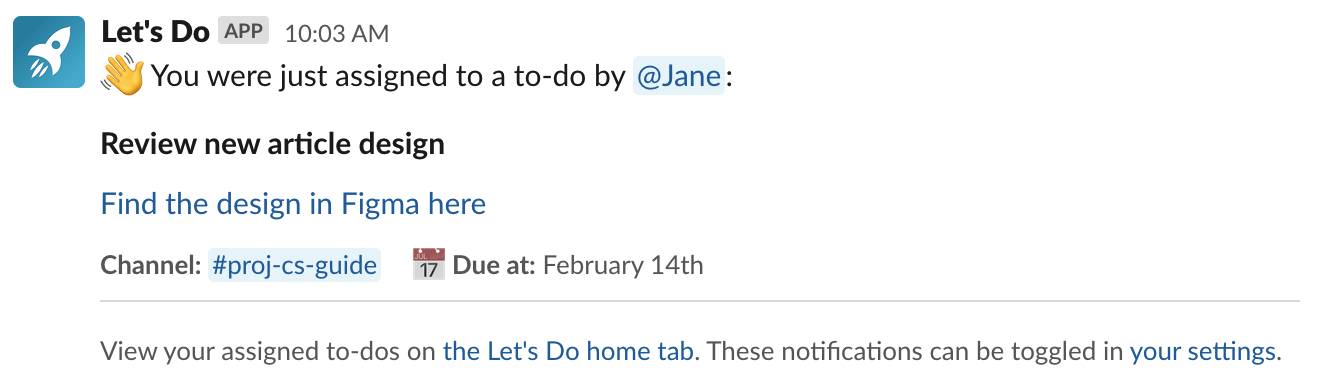
When you assign a task to someone, they get a DM with the details and a link to the Home tab.
New users get welcomed
When someone opens the app for the first time, they get a message explaining how it works.
The Home tab is ready
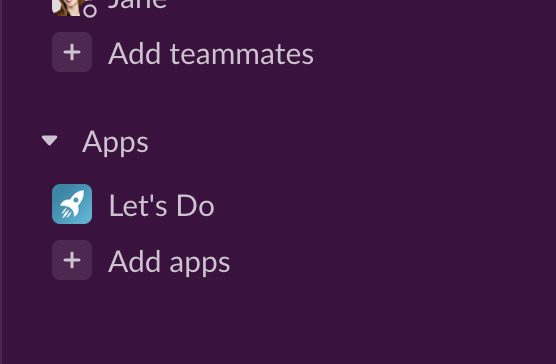
Your team can find their tasks under Apps > Let's Do in Slack's sidebar. No setup needed.
Let your team know
A quick heads-up in your team channel goes a long way. Here are two messages you can copy and paste.
👋 Hey team, I've added a task manager to our Slack called Let's Do. It gives each channel its own to-do list, so we can track tasks without leaving Slack. You'll find it under Apps in the sidebar. I'll start by adding a few tasks for us. ✅
Hey, I've set up a task manager in Slack called Let's Do. I'm going to assign you a task to try it out. You'll get a notification with the details.
Create your first few tasks
The best way to onboard your team is to just start using it. Here's what to do.
Open the Home tab
Find Let's Do under Apps in Slack's sidebar and click "+ New to-do".
Pick a channel and assign someone
Choose a channel your team uses, add a real task, and assign it to a colleague. They'll get a DM with the details.
Create 2-3 more tasks
Give your team something to see when they open the app. A few real tasks are better than test ones.
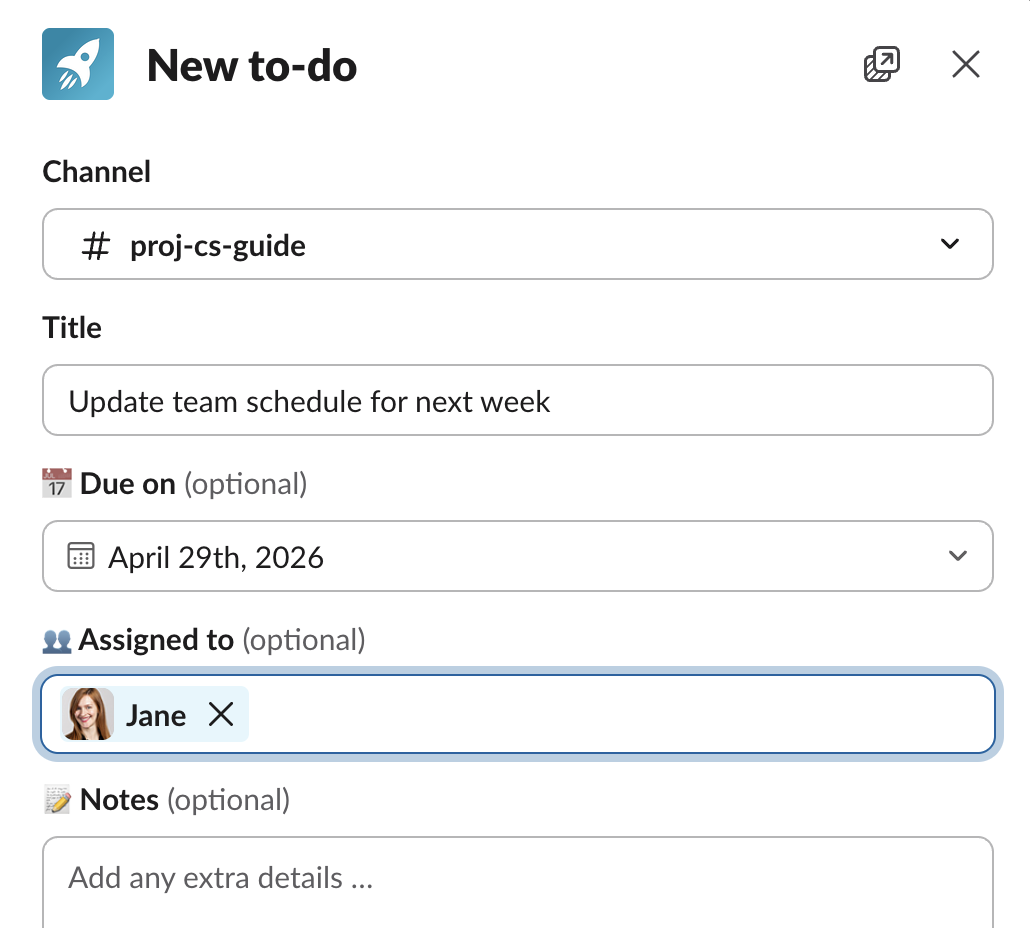
That's it. When you assign a task, the person gets a DM with the details and a link to the Home tab. That's their introduction to the app.
What your team sees
When you assign someone a task, they get a message like this.
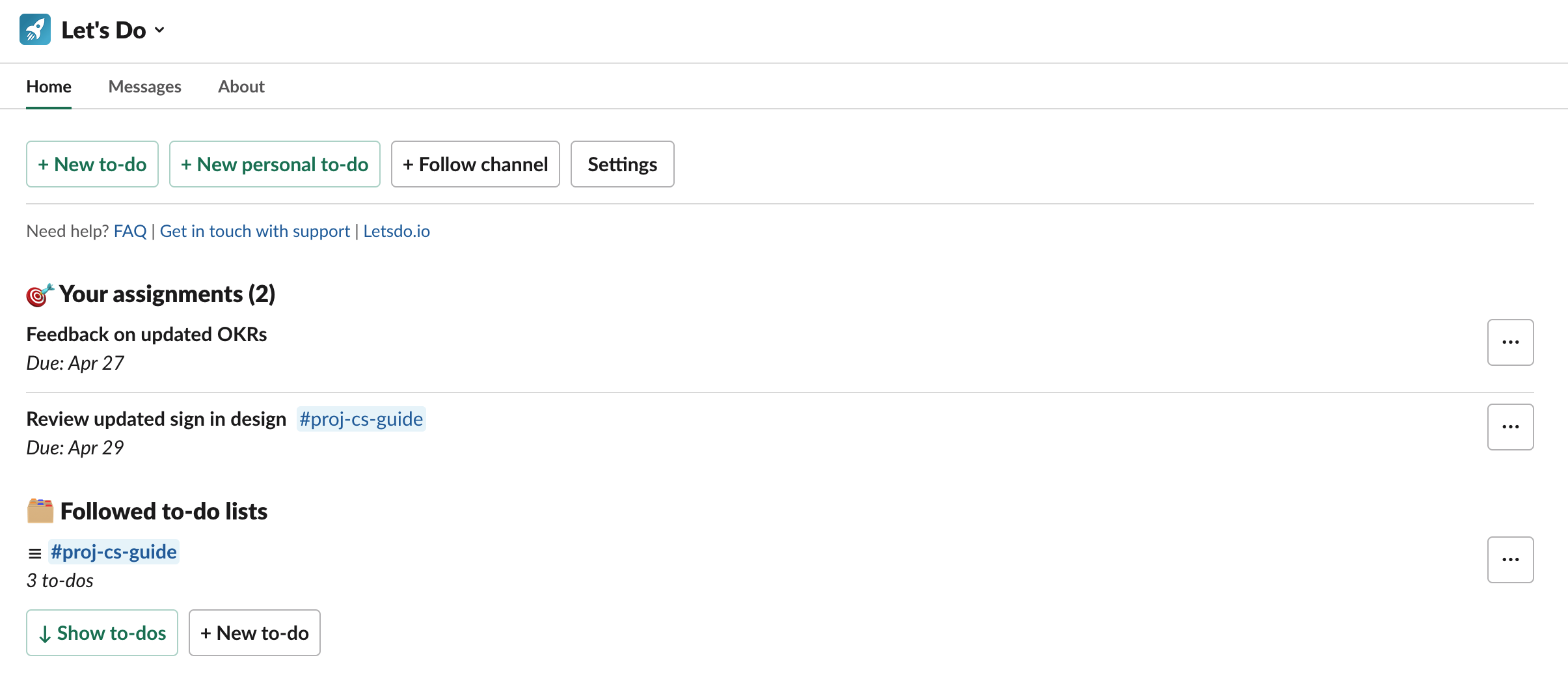
When they open the Home tab, they see their assignments and the to-do lists they follow.
Questions about getting your team set up? I'm happy to help